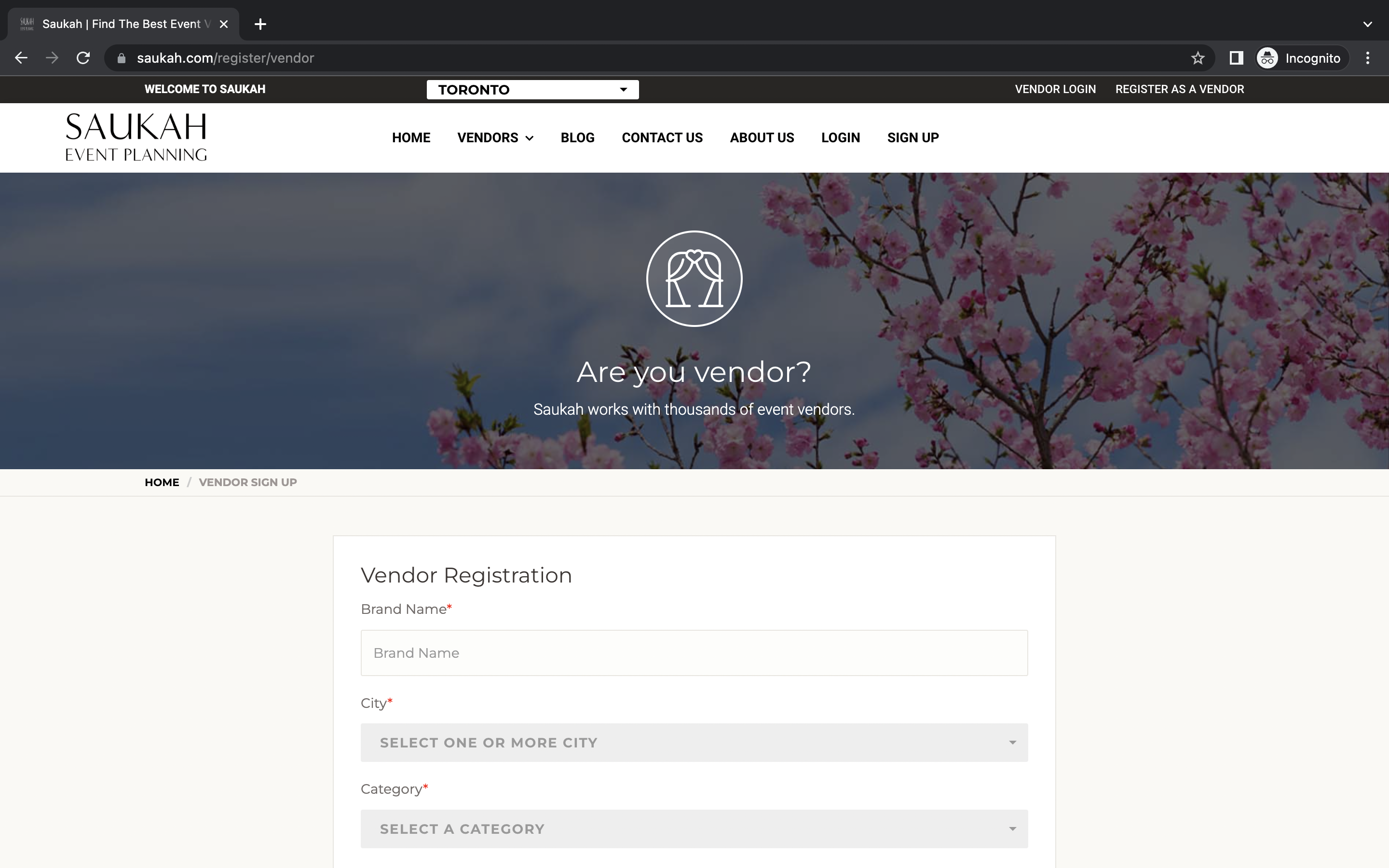

Step 1: Register (Visual Reference Below)
1. Click the "Register as Vendor" button. This is located on the top right corner of the home page.
2. Fill out the required information.
a. Certain categories like hair/ makeup will have subcategories to select from.
b. Select all the cities you work in, there is an option to add “Available for Travel” later on.
3. Review your information to make sure it is correct and accurate.
4. Ensure you have read through the Terms & Conditions and Privacy Policy.
5. Click on the "Register" button to complete the registration process.
6. Check your email for a confirmation message. In this email you will find more information about using your account. (See Step 2)


Step 2: Email Confirmation (Visual Reference Below)
1. If you were successfully registered you will receive an email with the subject line “Welcome to Saukah Planning!” This could take a couple minutes, please be patient. If you don’t receive anything, double check your junk folder.
2. Once receiving your confirmation email you can go back to saukah.com and login using your credentials.
3. A Saukah team representative will reach out to you to see you have any questions about setting up your account. This may take 1-2 business days.
** If you have any questions or immediate concerns please contact us at info@saukah.com
Step 3: Login (Visual Reference Below)
1. Once you login you will see your vendor dashboard. This is where you will see your verification status.
2. Your verification still will remain pending until the Saukah Team has allowed your profile to go live. Before your profile is made live you must complete it.
3. On the navigation menu found at the top, you can toggle to your profile, services, portfolio, scheduler, and inbox.
**Please note anytime you make changes to your profile they will remain pending until the admin approves them, it is only then they go live. We do this to ensure all the information published on vendor profiles is appropriate. Email info@saukah.com if you have any concerns.

Step 4: Profile Set-Up (Visual Reference Below)
1. On your profile you will need to add a cover and thumbnail image. These images have standard dimensions and can be cropped with the built in tool when you upload them.
2. You will also need to share a bio for your services. You can fully customize these details. Things you can add are:
- What services you offer
- Years of experience
- Social Media handles
3. You will be able to update your service locations here. This is where you can add all the cities that you offer your services in and also indicate whether or not you would be available for travel.
Sample “About” for reference:


Decor Company
[Insert Company name] is a leader in event decor and design. With X years of experience, our talented team has a proven track record of creating beautiful, memorable events that leave a lasting impression.
At [Insert Company Name], we understand that every event is unique and special in its own way. That's why we offer a wide range of services and flexible design options to accommodate the specific needs and desires of each client. Our team of decor specialists works closely with you to bring your vision to life, using the latest trends and techniques to create a truly one-of-a-kind experience.
From birthdays to weddings and everything in between, we have the expertise and creativity to make your celebration unforgettable. We take pride in our unique designs and attention to detail, ensuring that every aspect of your event is handled with care and precision.
Whatever your decor needs, we take care of everything from start to finish. Contact us now to get started! To see more of our work, please check out our instagram page at [Insert Instagram Handle]

Step 4: Services (Visual Reference Below)
You have the option of editing your services.
1. Select the Additional Filter to add granularity for the type of service you offer. You can do this for services like hair and makeup.
2. To add an additional service select the “+” icon beside services
3. Select Edit to add a price range for your services.


Step 5: Portfolio (Visual Reference Below)
1. The last step to complete setting up your account is to showcase your work! You can upload up to 50 images to your portfolio.

Step 6: Approval (Visual Reference Below)
Once you have completed your account set-up you will need to wait for admin approval.The approval process typically takes 3-5 business days. If your dashboard still has a pending status after this time period, please reach out to us at info@saukah.com.
Once your account has been verified you will receive an email from us stating the same.
On the dashboard your status will change from “Pending” to “Verified.”

Step 5: Going Live (Visual Reference Below)
1. Once your account set-up has been approved your profile will be live!


Step 6: Scheduling (Visual Reference Below)
1. You will be able to now go into your scheduler and block off times. The scheduler function allows you to give users more insight into your availability when they're searching for a service. If you block a time off and a user selects that day & time for a booking, your profile won't show up as visible! If they don't add a specific day or time, it will show up.

Step 7: Inbox (Visual Reference Below)
1. Once users create accounts, they can view your profile and send messages to inquire about services.
2. If a user selects a date and time you have blocked off a note will appear under the time slot stating that you are already booked then.
3. You can communicate with users directly through your inbox. All your inquiries will be stored in this one location.
Please note, the first request for every user inquiry will require admin approval. We do this to limit spam and clogging up our vendor inboxes. Once the first request is approved, vendors and users will be able to communicate without any admin approvals.


Laundry Items:
Please note, everytime you make a change to your profile or services your account goes on hold. This means that your account is hidden until those changes have been approved. We do this to ensure that potential clients are not seeing incorrect information while your changes are in the approval process.
Remember every time your account has been approved for changes you will receive an email and see the status change applied to your dashboard. So please monitor your account for approval. If changes have not been applied and you don’t see your dashboard status change within 5 business days please let us know at info@saukah.com.